

Guide: adding a custom MCP server to Claude and ChatGPT in the web interface
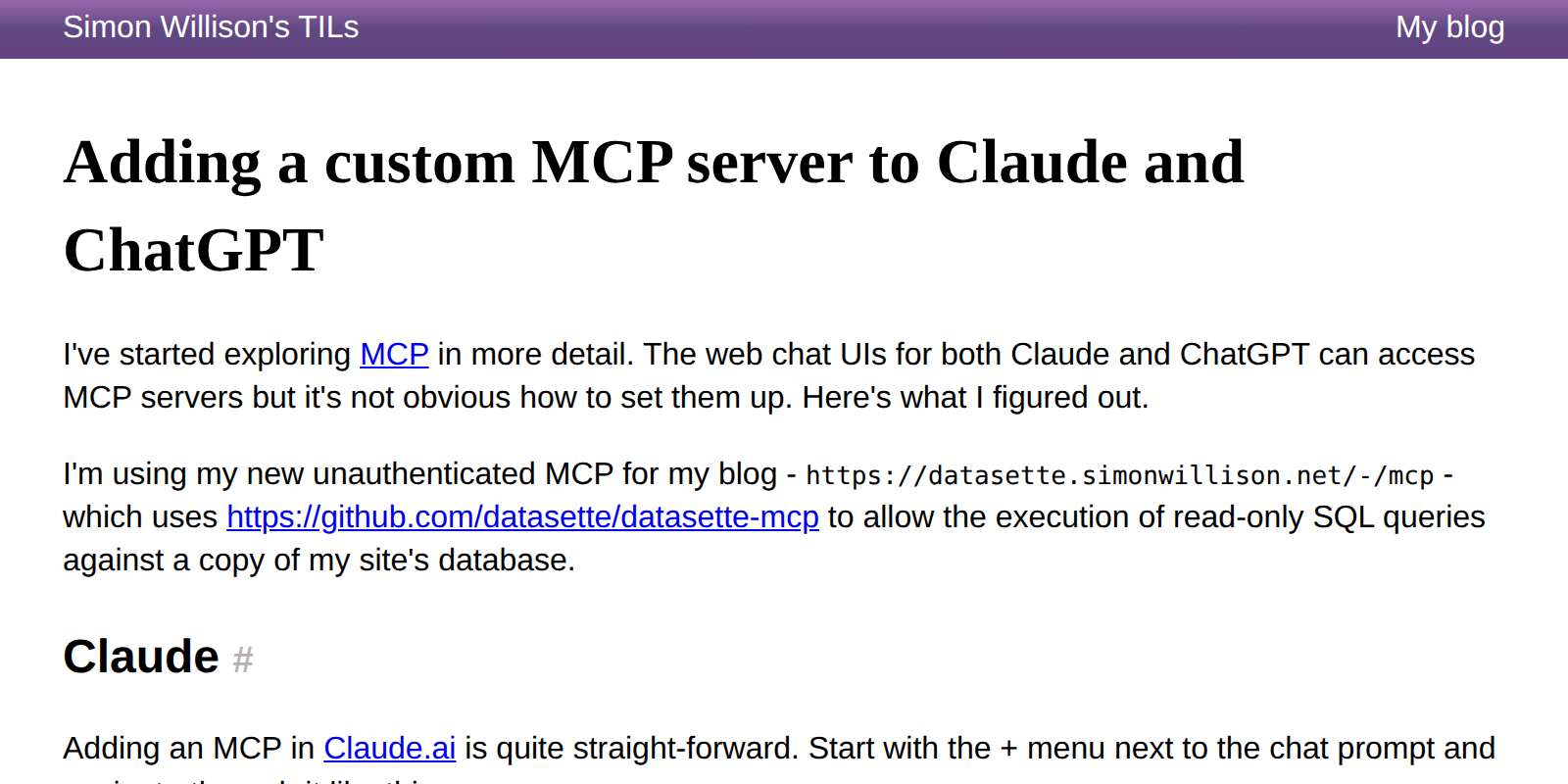
Simon Willison described how to set up a custom MCP server in Claude.ai and ChatGPT. In Claude.ai, it takes a few clicks in the Connectors menu; in ChatGPT, you need to enable the hidden Developer mode, and MCP is referred to there as a „Plugin"; MCP does not work in ChatGPT voice mode.
Simon Willison described on his blog how to set up a custom MCP (Model Context Protocol) server in the web interfaces of Claude and ChatGPT. As a test example, he used an unauthenticated MCP server for his blog, built with the datasette-mcp tool, which allows read-only SQL queries to be run against a copy of the website database.
In Claude.ai, the process is straightforward according to Willison: the „+" button next to the message field opens a menu where you can select „Add custom connector" and enter the URL of the MCP server, and optionally configure authentication. The newly added connector can then be enabled and disabled in the Connectors menu.
In ChatGPT, the process is much more complicated according to Willison. First, „Developer mode" must be enabled in the account settings (Security and login). The MCP server can then be added using the „+" button in the top-right corner of the Plugins directory page – the ChatGPT user interface refers to an MCP server as a „Plugin". If the server does not require OAuth, „No Auth" must be selected for authentication. Activation within the chat itself is also less straightforward – Willison had to use the „+" icon next to the message field to search for the MCP server by name and confirm permission to use it the first time.
Willison also stated that he was unable to use MCP servers in ChatGPT Advanced Voice mode – the tools are not available during a voice conversation, although he had hoped it would be possible to control the MCP server entirely by voice.
Why it matters
For anyone who wants to connect their own tool or data source to an AI chat via MCP, this is a practical guide that shows a significant difference in how user-friendly the two platforms are – setup in Claude.ai takes only a moment, while ChatGPT requires first unlocking a hidden feature and navigating different terminology („Plugin"). This also affects how easily MCP tools can be deployed to a wider group of users, including the limitation that MCP servers currently cannot be used in ChatGPT voice mode.
Two audiences, two different impacts
What this means
For individuals
Anyone who wants to connect their own MCP server to their chat now has precise instructions for both approaches – in Claude.ai, it takes a few clicks in the Connectors menu; in ChatGPT, you first need to enable the hidden Developer mode, and MCP is managed there as a „Plugin".
For a business
Companies considering deploying their own MCP connectors for employees must account for support and onboarding being significantly more demanding in ChatGPT than in Claude.ai, and for MCP tools currently not working in ChatGPT voice mode.
DevelopmentCheck the original
Event sources
only one source so far · 1 publisher, 1 independent. We count feeds from the same owner only once.